



Editing Deadline
The editing deadline is the time window you give customers to make changes to their order after checkout. During this period, customers can edit items, quantities, shipping addresses, and more before the order is sent to fulfilment.
Order Editing can allow customers to edit their order up until it's marked as "Fulfilled" in Shopify. However, we recommend giving customers a defined time window rather than leaving it open-ended. A clear deadline communicates expectations and creates the urgency that drives action.
We recommend 30 minutes as your default. 95% of all order edits happen within the first 30 minutes, so this works for the majority of stores.
Success: Oh Polly, a fast fashion retailer, uses a 15-minute editing deadline. This single change reduced their customer support tickets from 2,000 per month to just 48.
How It Works
The editing deadline starts the moment a customer completes checkout:
- Customer places an order. The countdown begins immediately.
- Editing window is active. The customer sees editing options on the Thank You page and Order Status page, with a visible timer showing time remaining.
- Deadline expires. All editing options disappear. The order is frozen in its current state.
- Order proceeds to fulfilment. The finalized order, with any edits applied, moves into your fulfilment workflow.
If your store uses external systems like a 3PL, WMS, ERP, or shipping software, Order Editing uses one of several methods to hold orders in Shopify until the editing window closes. Depending on your technology stack, this could be delayed payment capture, order holds, order tagging, or fulfilment requests. This ensures customer edits are included before the order is imported by your external system.
Configure the Editing Grace Period
This is the first card on the Editing Deadline page. It controls the Allotted Editing Time, which is how long customers have to edit their orders after placing them.
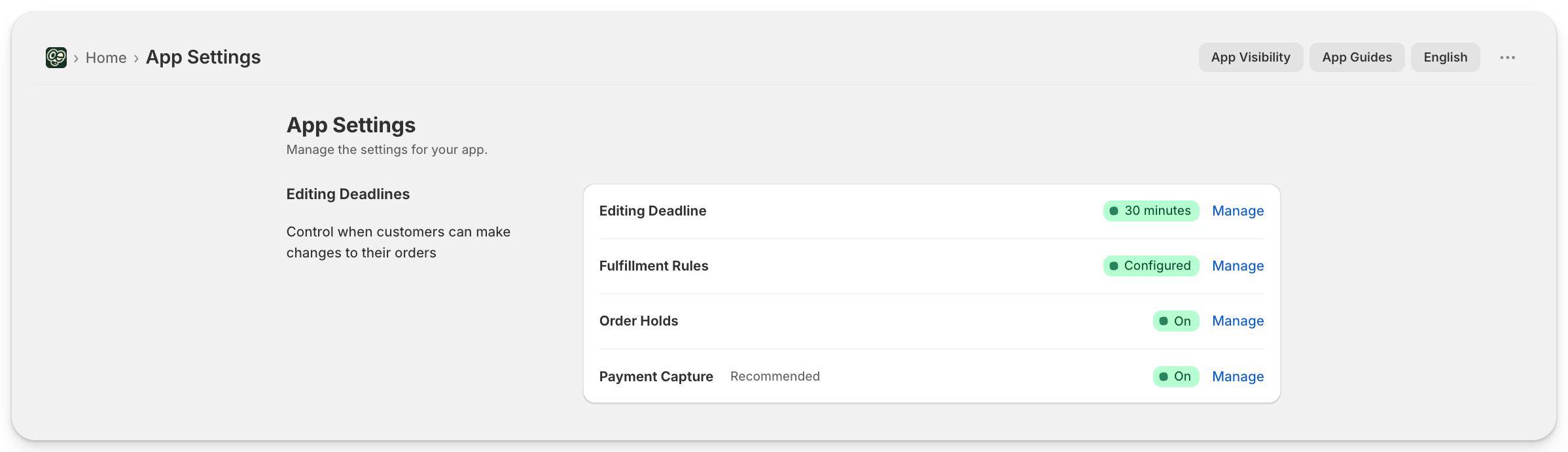
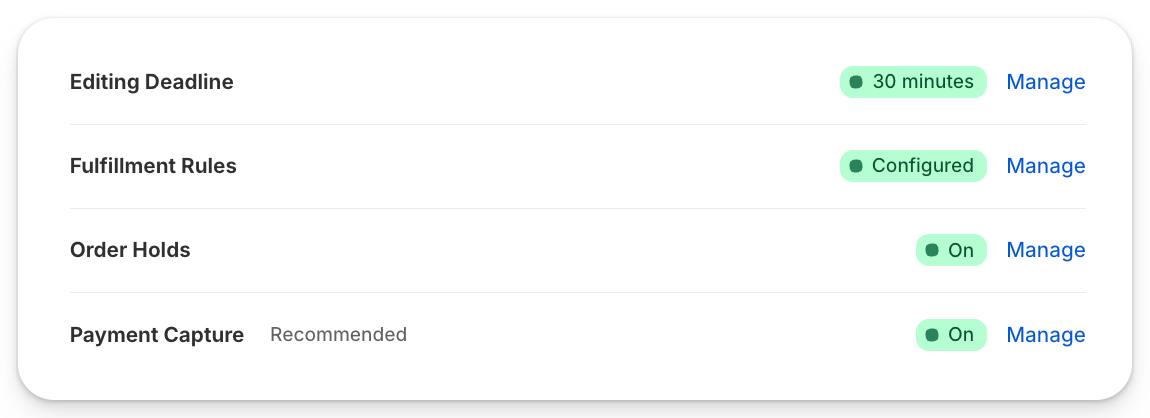
From App Settings, click Manage next to Editing Deadline to open the Editing Deadline page.
- In Order Editing, go to Settings > Editing Deadline.
- Under Editing Grace Period, find the Allotted Editing Time dropdown.
- Select your preferred time window (e.g. "30 minutes after order").
- Click Save.
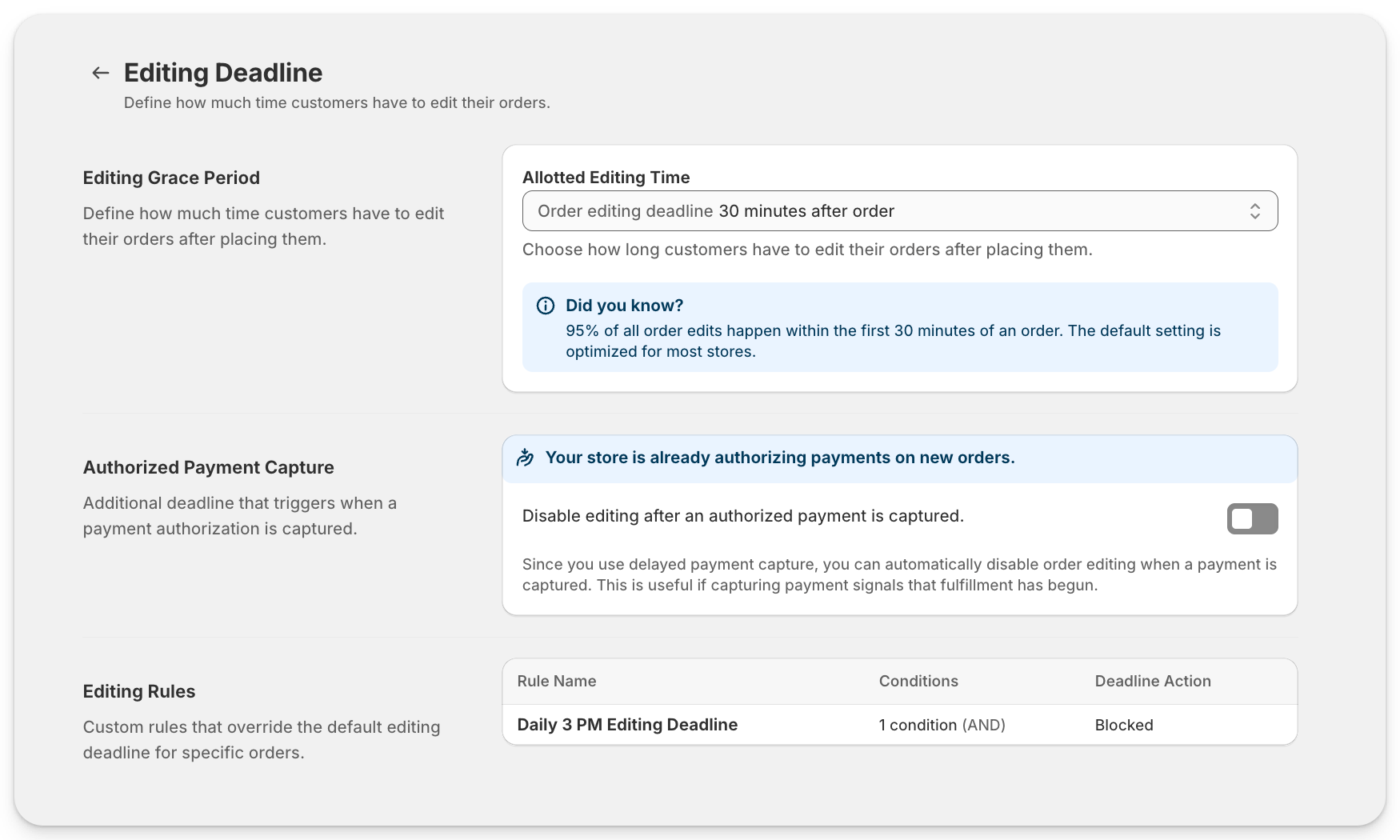
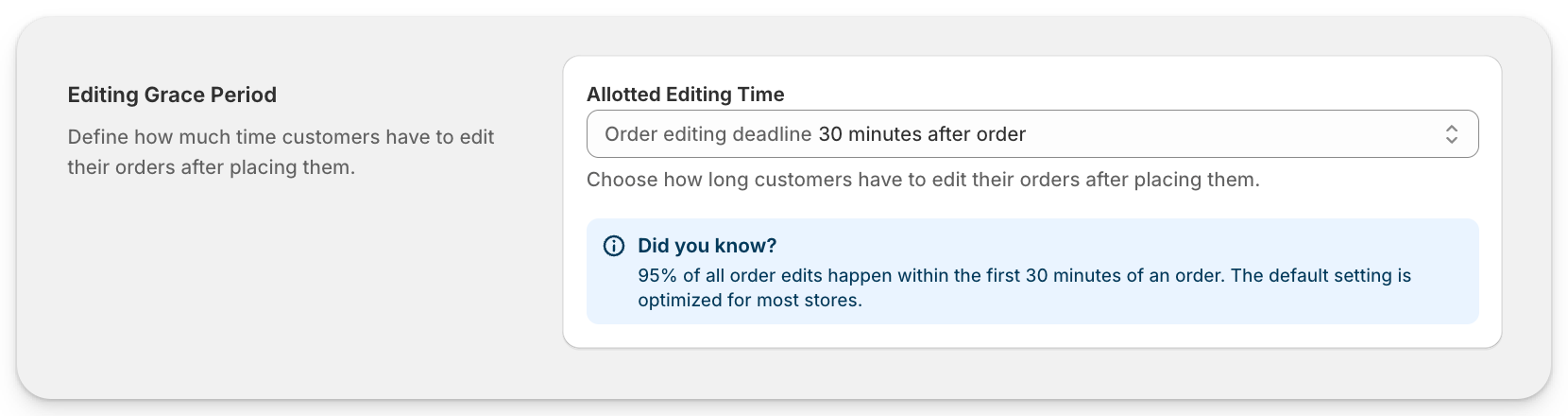
The Allotted Editing Time dropdown gives you a wide range of windows to choose from. You can set anything from 2 minutes up to 2 business days after an order is placed, in small steps at the short end (2, 5, 10, 15 minutes and up) and in hourly steps further out (up to 12 hours, then 24 hours).
Beyond the fixed time windows, you also have two open-ended options. Until the order is fulfilled leaves editing open right up until you mark the order as fulfilled in Shopify, with no fixed time limit. Until Shopify Flow disables editing hands control to a Shopify Flow automation, so editing stays open until your Flow closes it.
For most stores we recommend a defined time window rather than an open-ended one. A clear deadline sets customer expectations and creates urgency. The open-ended options are best when your fulfilment timing varies and you'd rather tie editing to fulfilment status than to the clock.
We recommend 30 minutes for most stores. If you ship fast (same-day fulfilment, express dispatch), 15 minutes gives customers enough time to fix a mistake without delaying your warehouse. If your fulfilment is slower (wholesale, next-day, or multi-day processing), you can extend to 60 minutes or longer.
If you use a post-purchase upsell email (for example, through Klaviyo) to drive customers back to add items, consider a longer editing window. The email needs time to be delivered and opened, so a 60-minute or longer window gives customers the chance to act on it.
💡 Tip: The editing deadline can be changed at any time. The new deadline applies to all future orders. Orders already in their editing window keep the deadline they were created with. This means you can adjust it seasonally. For example, during a peak sale period (BFCM, end-of-season clearance), you may want to extend the window to two hours or more.
Update the Deadline Everywhere
When you change your editing deadline in the app, you also need to update the deadline shown in your customer-facing communications. At minimum, update these two places:
- Order confirmation emails. Your Shopify order confirmation email likely mentions the editing window. Update it to match your new deadline. See our guide on updating order confirmation emails for instructions.
- Klaviyo upsell emails. If you use Klaviyo to send post-purchase upsell emails, update the deadline mentioned in those flows to match.
For more advanced control, such as shorter deadlines for express shipping or longer windows for overnight orders, see Create Custom Editing Rules.
Configure Authorized Payment Capture
The second card on the Editing Deadline page controls what happens when a payment is manually captured before the editing window expires. This option is always available, but is specifically highlighted if your Shopify store is set to manual payment capture.
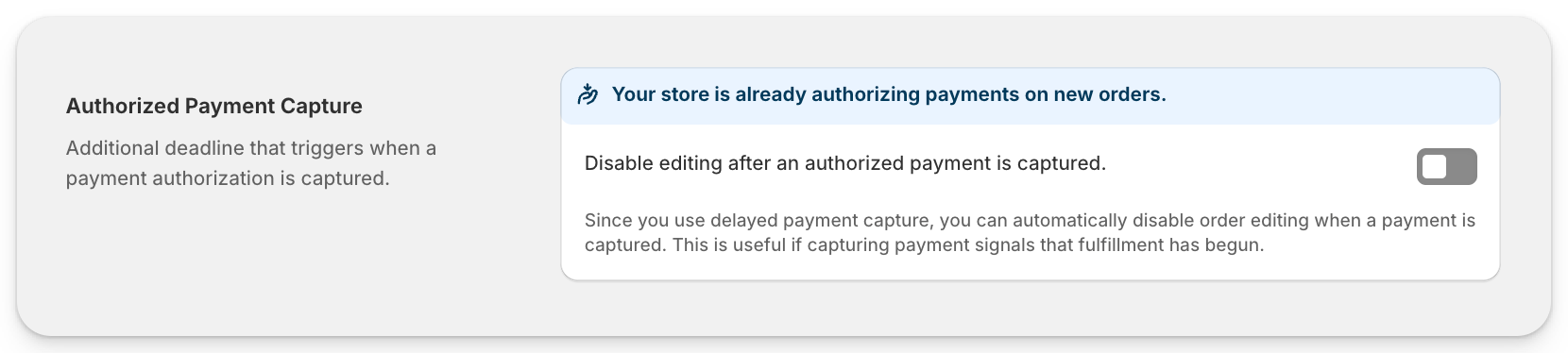
When enabled, if a payment is manually captured (by you or by another system) before the editing window expires, editing stops immediately for that order. This is useful if you need to override the editing window on specific orders by capturing payment early.
For a full explanation of how delayed payment capture works with Order Editing, see What Is Delayed Payment Capture?
Post-Purchase One-Click Upsell Page
This section only applies if your store uses Shopify's post-purchase one-click upsell page. This is the page that appears between the Checkout and the Thank You page, where customers can accept a one-click offer before seeing their order confirmation.
This matters for your editing deadline because Shopify places a fulfilment hold on the order while the post-purchase upsell page is active. The hold can last up to 60 minutes. During this time, the order sits in a "pending" state and the editing window may not behave as expected.
Here's what happens depending on what the customer does:
Customer Action | What Happens |
Accepts or declines the upsell and continues to the Thank You page | The hold lifts immediately. The editing window starts as normal. |
Closes the browser or abandons the upsell page | Shopify keeps the hold for up to 60 minutes. The order stays in a pending state until the hold expires. |
This hold is controlled by Shopify, not Order Editing. If you notice orders sitting in a pending state longer than expected, this is likely the cause.
For setup details on using Order Editing with Shopify's post-purchase upsell page, see our guide on post-purchase upsells.
Review Active Editing Rules
The Editing Rules section lists the custom rules currently active for your store. These rules override the default editing deadline for matching orders.
For example, you might have an active rule that gives express shipping orders only 10 minutes, overnight orders a 12-hour window, or gift card orders no editing at all.
For setup instructions and common rule examples, see Create Custom Editing Rules.
FAQ
Can I Skip the Editing Window for Same-Day or Local Delivery Orders?
Yes. Create a custom editing rule that uses the "block editing immediately" condition. This bypasses the editing window entirely for matching orders. You can target specific shipping methods like "Local Delivery", "Same Day Delivery", or "Uber Direct". For full instructions, see Create Custom Editing Rules.
Does the Editing Deadline Affect Payment Capture?
The editing deadline only affects payment capture if your store uses delayed payment capture. In that setup, payment is captured automatically when the editing window expires. The editing deadline controls the timing. See What Is Delayed Payment Capture? for details.
Can I Change the Deadline Without Affecting Orders Already in Progress?
Yes. Changing the editing deadline only applies to future orders. Any orders currently in their editing window keep the deadline they were created with. You can adjust the deadline as often as you need without disrupting active orders.




